Division of Continuing Studies
Help Center

System Preferences:

  • Internet Explorer 6.0 + or Firefox 1.5
  • Adobe Flash Player
  • Javascript Enabled
  • High Speed Internet Connection Preferred

How Do I:

  Add new course
Add new section
Add new text books
Assign an instructor to a course
Create and change fees
Create assignments
Create course crosslistings
Create a course description and add a "please note"
Login
Logout
Modify an existing instructor's Appointment Form
Modify a course description and "please note"
Modify existing assignments
Modify existing text books
Modify offering status of a course
Review/Editing a Course/Section
Search by instructor name
Search by instructor SSN
Set up new instructor
Unassign an instructor from a course
View department reports
Adding a new section
Adding a New Section
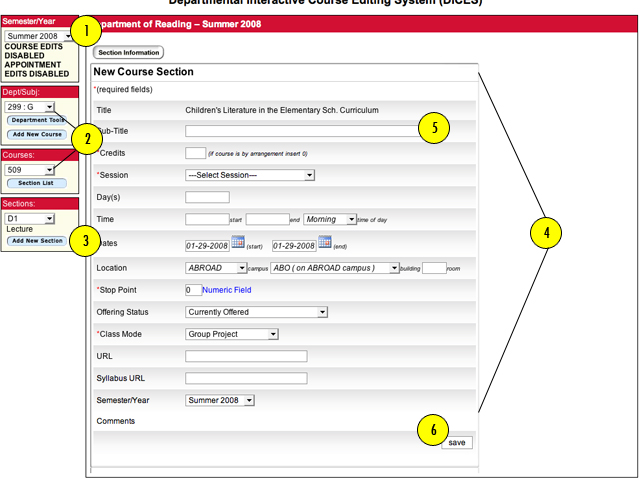
  1. First, select the  appropriate term under “SEMESTER/YEAR.”
  2. Select the appropriate "DEPARTMENT/SUBJECT" and "COURSE" (located on the left side of the page).
  3. Click on "ADD NEW SECTION" under "SECTIONS" (located on the left side of the page).
  4. Enter the information in the mandatory fields.
  5. For "SUBTITLE" enter the title assigned to this section if it differs from the title in the Master Course List. This title will override the course title and will be used for our website.
  6. Click on the "SAVE" button located at the bottom of the page.

Have we answered all of your questions? If not, please submit your question below:

*First Name:
*Last Name:
*E-mail:
*Phone Number:
*Comments
*Required Field
