|
Help Center
System Preferences:
- Internet Explorer 6.0 + or Firefox 1.5
- Adobe Flash Player
- Javascript Enabled
- High Speed Internet Connection Preferred
How Do I:
|
|
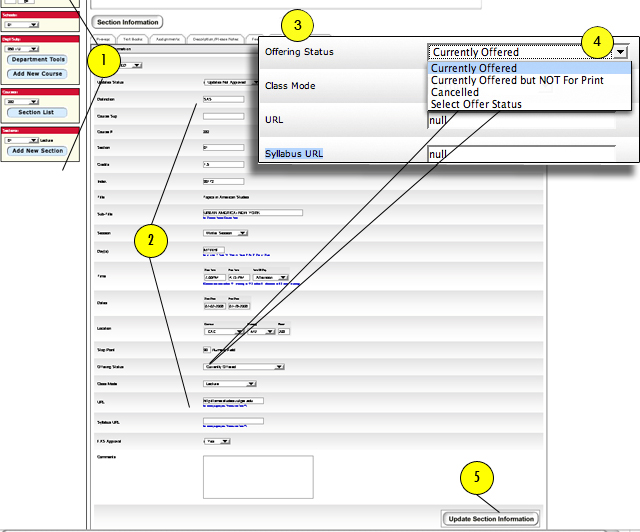
Modifying Offering Status of a Course
- First, select the appropriate "SEMESTER/YEAR", "DEPARTMENT/SUBJECT", "COURSE", and "SECTION" (located on the left side of the page).
- The section information for the course you have chosen will appear.
- Make the appropriate selection under the drop down "OFFERING STATUS."
- If you are currently offering the course select "CURRENTLY OFFERED", if you are currently offering the course, but do not want it to appear on the website or in the catalog select "CURRENTLY OFFERED BUT NOT FOR PRINT" or if the the course has been cancelled select "CANCELLED."
- Click on "UDATE SECTION INFORMATION" to save your changes.
|
Have we answered all of your questions? If not, please submit your question below:
|
|
